Nature Coding 003: Editing a film while I was still shooting it
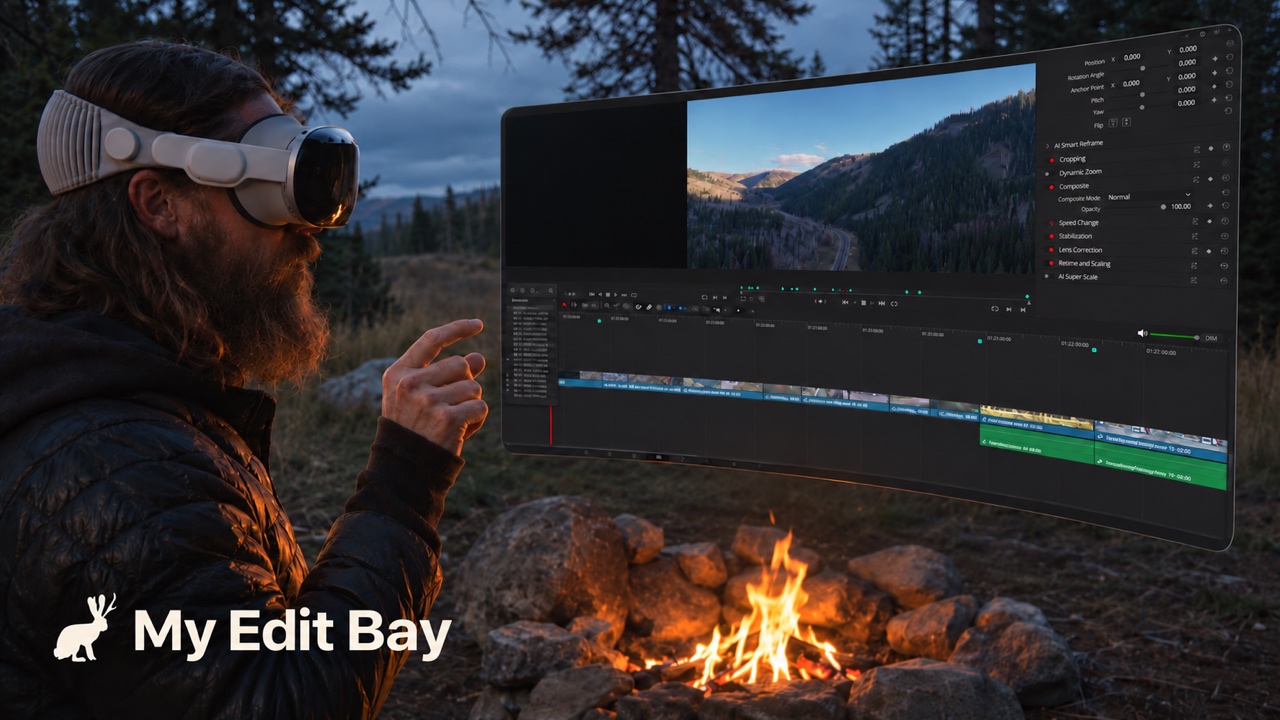
By the time I got back to the trailer, there was already a timeline waiting for me in DaVinci Resolve. I’d taken my cameras into the Utah mountains to see how much of a film Codex could assemble while I was still shooting it. It got me through the first assembly and took a pass at the rough cut. I spent another week tinkering with the edit. Both halves of that experiment are in this episode.
Start with the question you want the footage to answer
I had a practical question for the shoot and a bigger one about publishing. I could build a system that moved clips onto a timeline. Why was it still so hard to call a video finished? The conversation with Chris Do at 0:49 gets at that. If I can say what the story is before I pick up the camera, I have a reason to film one thing and leave another out. Otherwise I’m making that decision for the first time with a week’s worth of footage in front of me.
Two shorter recordings go into that part of the episode. How to Plan and Edit Video Essays runs about four minutes. Nature Coding, Perfectionism, and Automation is the longer, ten-minute version of the publishing question.
What was on the timeline when I got back
The campfire sequence starts at 3:26. At 3:53 I get into what Codex helped edit. The useful handoff was an ordinary Resolve timeline. I could play it, drag a cut, keep a stretch of location sound, or ask for another pass. I could judge an actual sequence while the place where I shot it was still right in front of me.
For a quick look at the editing work, watch the five-minute Episode 3 edit walkthrough. For the longer session, BonsaiPods 57 follows the AI-assisted Resolve workflow for about 50 minutes.
Try one scene in DaVinci Resolve
Use a scene you know well. A few clips of making coffee will teach you more about this workflow than giving the editor an entire drive and asking for a film. You already know which shot should open the scene, what sound belongs under it, and whether the last cut feels early.
- Connect the editor. Open your project in DaVinci Resolve Studio. Follow the Resolve MCP installation guide for the local connection. Use a desktop AI client with access to that connection. Before asking for an edit, ask it to report the open project and timeline. Compare both names with the ones in Resolve.
- Ask for an assembly you can inspect. Pick a small bin, ask the assistant to create a new timeline with a recognizable name, and specify the clips or the order you want. Keep the original timeline available. Play the result in Resolve.
- Give one note you can hear or see. For example, ask it to hold on the coffee pour until the cup is full and carry the sound across the next cut. Replay the same few seconds. It’s much easier to judge a specific revision than a request to “make it cinematic.”
The last pass still took a week
An assembly waiting at the trailer gave me an earlier start on the decisions I tend to spend the most time on. How soon should my voice come back? When should the campfire carry the scene by itself? Those are choices I can hear on playback. If that’s the part you’re working on, the 15-minute sound design walkthrough is a good place to go next.
Episode 2 used a hike as the setting for building an app. This time the thing I built helped make the film you just watched. Watch Nature Coding 002.